

A Chat Dashboard is an area where people can look at arrange and take care…

Chatbot UI Kit Examples: How to Build a Web Chatbot UI Idea
Reading Time: 11 minutes
A chatbot interface does more than just show messages. It has to help the user understand their question complete the request and move on to the step. For developers and design teams having a easy-to-use interface that saves time during coding is very important.
Watch Full Video
Looking at Chatbot UI kit examples gives developers and designers an idea of how chat windows, message bubbles conversation lists, quick replies and other parts can fit together. With an UI base you can build a chat app that’s simple and easy to use.
Whether you’re working on customer support, an AI assistant, a SaaS tool or an internal messenger knowing the basics of a Chatbot Web UI helps you create a layout that serves both users and your business goals.
In this article I’ll cover chatbot interface ideas, key components, responsive design and what to consider when choosing a Chatbot UI kit for your web app.
What Are Chatbot UI Kit Examples?
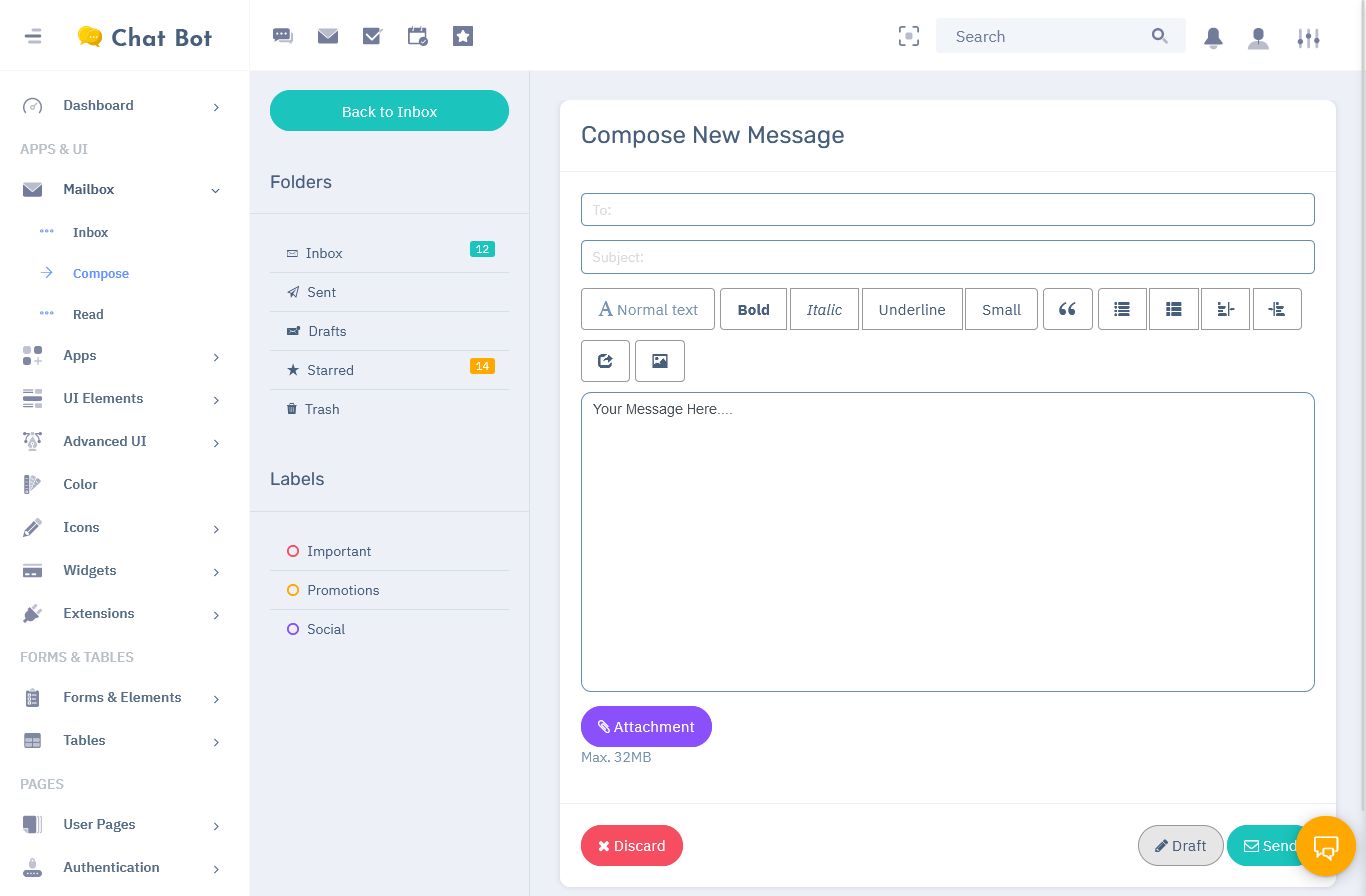
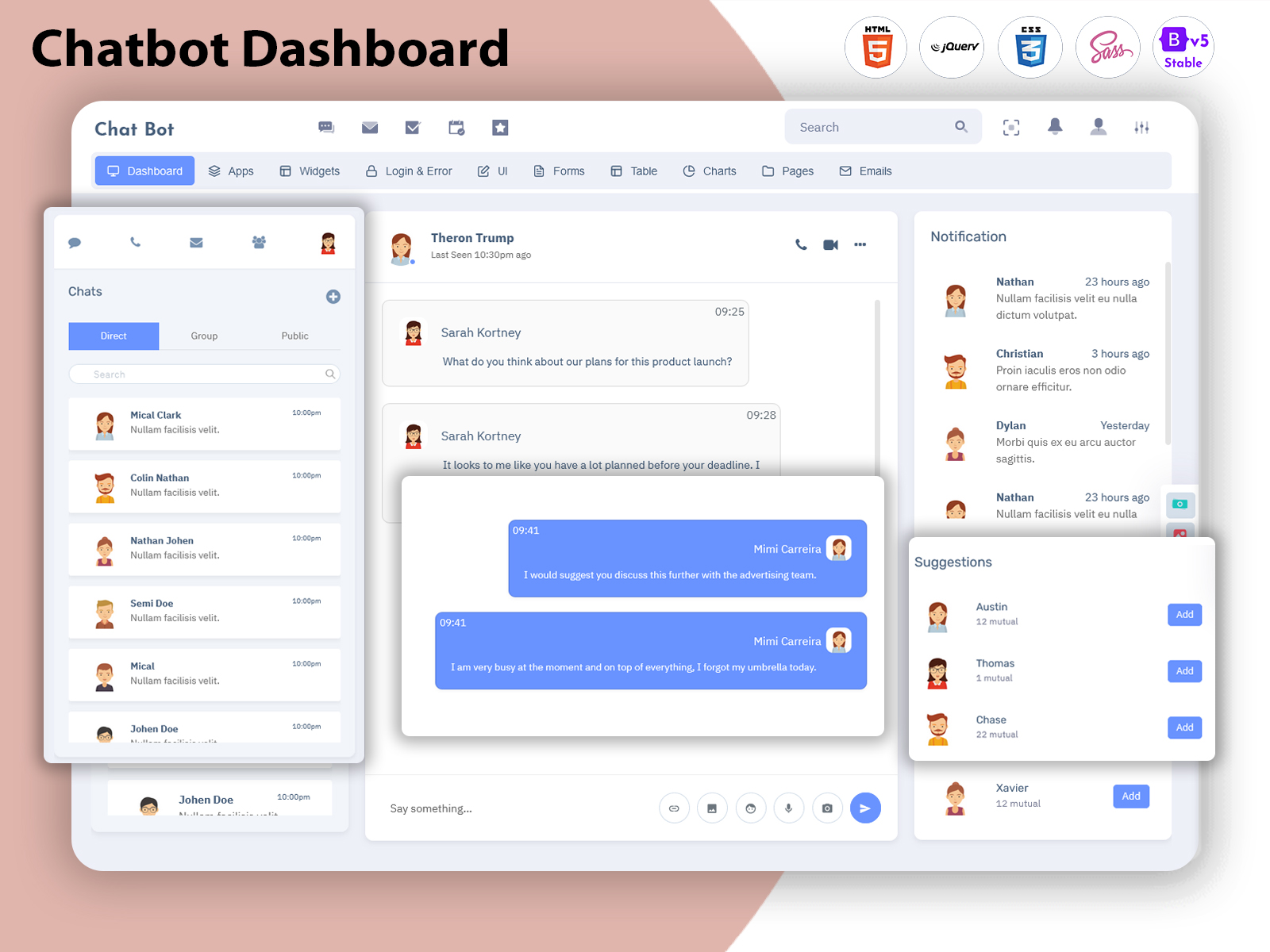
Chatbot UI kit examples are design samples that show how different parts of a chatbot app can be arranged and styled. Chatbot UI kit examples help me see how to build an easy‑to‑use chatbot interface. You might come across kits with components, full chat screens, conversation managers or even dashboards.
These kits act as a starting point for designers and developers who want to build chat apps with design rules. They let you style components quickly to fit your product’s look and feel.
Some common examples include:
- Customer support chat UI: These focus on handling conversations giving answers and responding to user questions.
- AI assistant UI: This kind of interface helps users ask questions see answers get suggested follow-ups and check conversations.
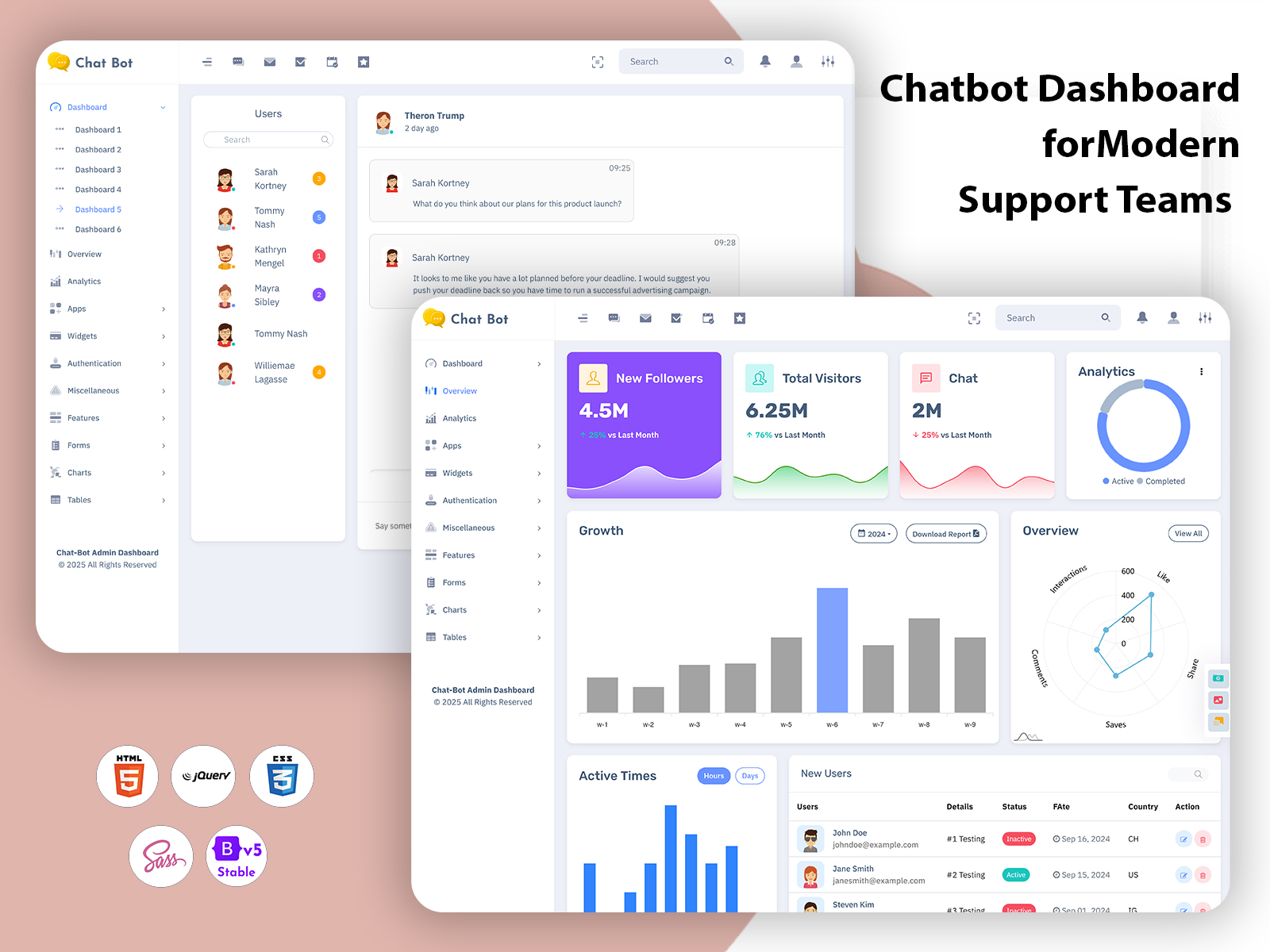
- Live chat dashboards: These give a picture of conversations and often include tools to manage chats and user info.
- Messaging application UI: Messaging apps usually have contact lists conversation threads, unread message indicators and user profile sections.
- Analytics dashboards: These show data about conversations like stats and patterns. Are used to review performance.
These samples help you imagine how your chatbot app could look before you start coding. You can also see how your chatbot interface might work with components and scenarios.
VIEW DEMO BUY NOW
Why Does Chatbot Web UI Design Matter?
Even if your chatbot has features users might still struggle to use it. Bad design can cause confusion. Like when messages are hard to read buttons are hard to press or steps don’t make sense.
A designed Chatbot Web UI helps users move from one step to the next without getting lost.
The Chatbot Web UI:
- Shows the conversation clearly. In order
- A message UI should help you tell your messages apart from the bot’s replies. Good spacing, text, timestamps and other tools make it easy to follow the chat.
- This is especially useful when you need to review messages or check logs.
- Helps you navigate through the app
- Conversation threads contact lists, search tools and profile options should be arranged so you can find things fast.
- Makes actions feel the same everywhere
- Buttons, text fields and menus should look and work the same across the app so you don’t have to think when you act.
- Works well on devices
- A responsive design means text, chat bubbles and other parts are easy to read and use on screens.
- Makes updates and maintenance easier
- Reusing the components means you only have to change things in one place when you update the app. That saves time. Keeps everything consistent. It’s much easier to manage when all the parts are shared. You don’t have to go through every screen or page to make a change. Just fix it once. It works everywhere. That’s the power of reuse.
Key Components to Look for in Chatbot UI Kits
Check your design needs before picking a UI kit. A simple website chatbot might only need a message area and input field.. A full messenger app will need conversation management, contacts, notifications, dashboards and more.
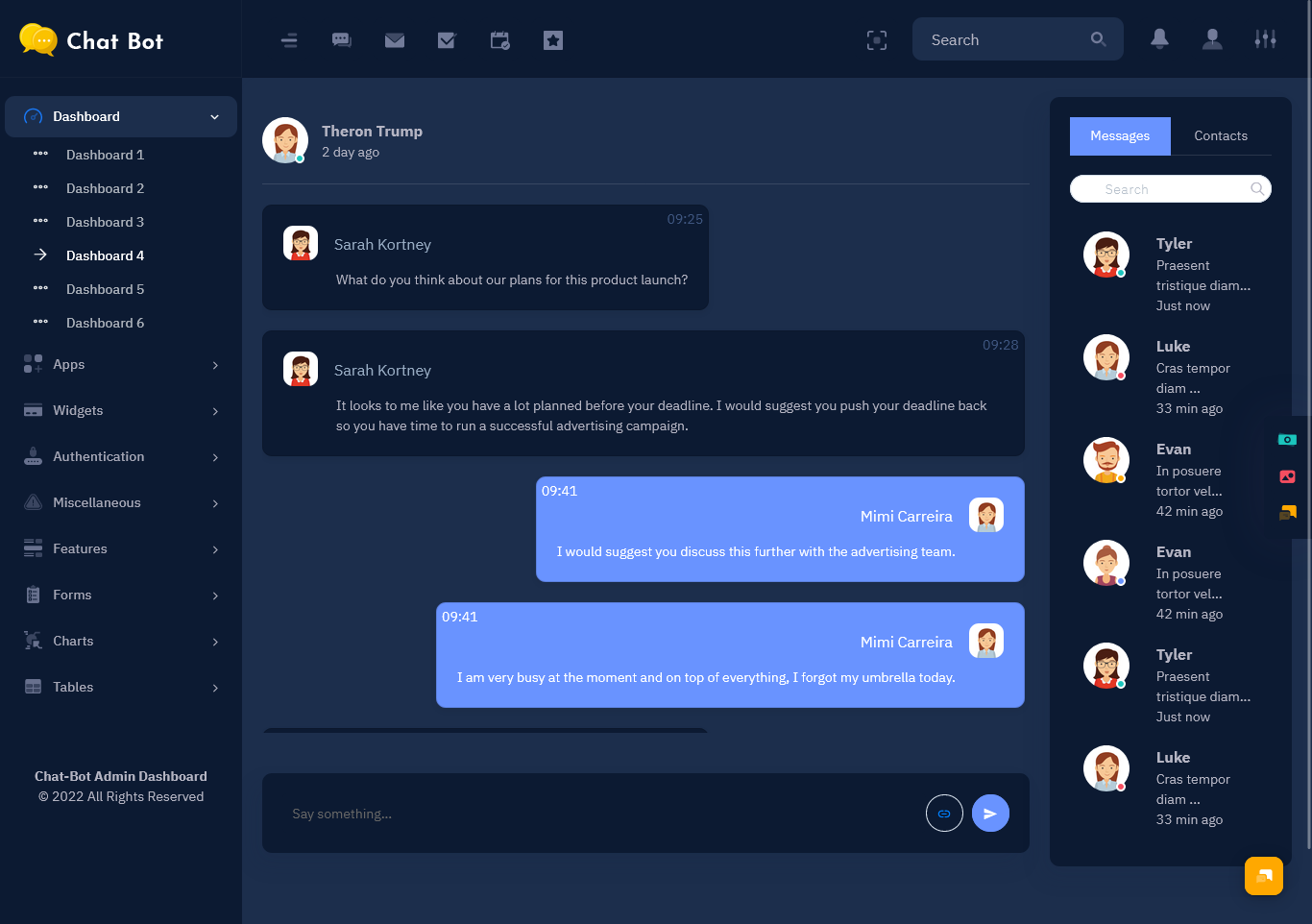
1. Chat window and message bubbles
The chat window is where the conversation happens. It should have room for messages. Important buttons and features should be easy to reach and placed where they make sense.
A good chat UI should include:
- message bubbles
- Bubbles should be clear. Let you tell your messages from the bot’s replies.
- Include spacing, readable text, timestamps and other tools if needed.
- Extra support features, like copy, retry and feedback
- You should be able to copy a message retry a failed response or give feedback.
When I use a chatbot I always check the input area to see if I can type and send a message. The send button should be easy to find. I should see what’s happening as the message is being processed.
I like reply buttons because they let me pick an action without typing. For example a customer support bot might have buttons for tracking orders managing accounts or asking questions.
These buttons work best when they match what I’m trying to do and help me get the answer I need.
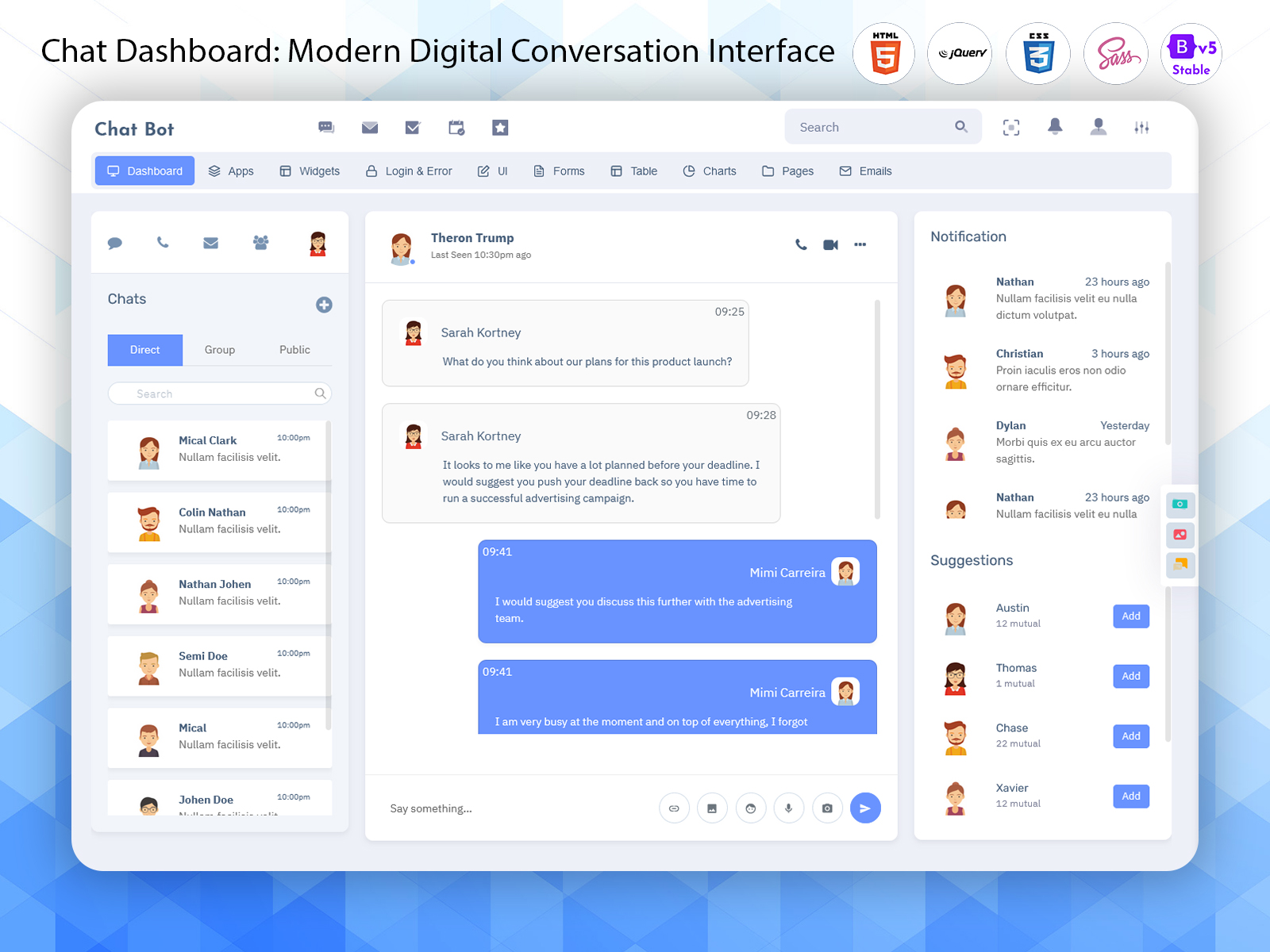
2. Conversation list and search
If your app handles chats you’ll need a list to quickly switch between them.
I like to see the conversation name, latest message, time, unread count and status. Search and filter options help me find chats. Especially when I’m handling customer support.
3. User profile and status information
A user profile section can show details during a chat. What’s shown depends on the app. It might be a photo, name, email or account details.
For customer support this helps agents understand the user. Only show what’s needed and always respect user privacy.
4. Typing, loading and error states
Your chatbot UI should tell you what’s happening so you know what to do
Make sure the UI includes:
- A typing indicator or loading animation
- A message failed notice and retry button
- A “bot sign
- A helpful error message
- A fallback response. Like a message or animated card. When the bot can’t answer
These signals are important so the chatbot doesn’t look frozen and always gives you the next step.
5. Human support transfer
automated replies aren’t enough so I should be able to ask for human help.
The UI should tell me when the chat is being handed off to a person. It shouldn’t make me repeat what I’ve already said. The agent should have the info.
A transfer button helps me get help fast in customer support. This also works well for apps that need to handle complex requests.
6. Data and conversation management
A chatbot dashboard helps you track info. It can show conversation threads, tables, graphs, stats and more to find trends.
Depending on your needs you might want to see how many messages were handled conversation volume, support tickets or other data.
The main goal of the dashboard is to give you info quickly. Focus on metrics that help you make decisions and avoid clutter.
VIEW DEMO BUY NOW
Web Chatbot UI Ideas for Different Applications
You should build the chatbot UI differently based on what the app does.
1. Customer support chatbot
Customer support apps focus on handling chats giving info and completing user requests. Useful parts include conversation threads, user info, search/filter tools, status signs and transfer options.
I find it helpful to see a conversation list next to the chat window so I can switch between chats. User info panels and conversation stats also help me manage support better.
2. AI assistant interface
An AI assistant needs to help you find answers. Key parts include access to knowledge ways to ask for info and a history of past questions.
I like an AI assistant with a clean conversation area an input field at the bottom suggested questions and a history panel. For some uses a document or code editor might be better than a chat thread.
3. E-commerce chatbot
If the chatbot helps you shop the UI should let you browse products get details and buy. Use product cards, image previews, options and links to make it easy to find what you want.
Organize the info so you can compare products without breaking the flow of the conversation.
4. SaaS application chatbot
A SaaS chatbot should help you get info while matching the app’s design. For example a support chatbot inside the app can help you manage tickets without leaving your screen.
The chatbot UI should fit in with the app. Not distract from what you’re doing.
5. Internal business chatbot
An internal chatbot can help employees get the info they need to do their jobs. This might include conversation threads, access, to a knowledgebase suggested questions or other tools.
I like it when businesses give me suggested questions and topics. That way I can get the information I need to do my job. Internal business chatbots are also helpful. They let me find the tools and documentation quickly.
How to Build a Web Based Chatbot UI For Your Application
I think a good Web Based Chatbot UI starts with the user. The design should help people finish their tasks. The look matters,. Only if it helps the conversation not gets in the way.
1. Define the requirements for the Chatbot UI
Before I design anything I need to know why the chatbot is there. Is it to answer questions? Help users find info? Manage conversations? The purpose will tell me what parts to include in the design.
2. Outline the conversation flow
I need to plan how the chatbot will move from one step to the next. That means thinking about how it asks for info gives answers handles mistakes and deals with situations. This helps me decide what UI parts to include.
3. Determine the layout
The conversation area needs room. Buttons and other tools should be easy to find and use. For a dashboard I use a screen. One side for the conversation list one for the chat and one for user info. For chat boxes inside an app I keep the design the same as the rest of the app.
4. Select a style
I pick fonts, colors, spacing, icons and message styles that fit the brand and what the app needs. Different styles can show actions or status.. I avoid adding too many things. Keep it clean.
5. Make the chatbot interface responsive
I test the design on phones, tablets and big screens. Text and message bubbles must be easy to read. The chat box should be big enough. The input field should be easy to reach on mobile. On phones I use menus instead of split screens.
6. Test the chatbot UI with real-world examples
I try the interface with conversations, errors and repeat questions. I check if I can see what actions are possible and what the chatbot will do. This lets me fix things before building the app.
Common Mistakes to Avoid When Designing a Web Chatbot UI
A chatbot can look nice. If it’s not user-friendly it doesn’t help. I’ve seen these mistakes often:
- Bloating the Chatbot UI with unnecessary components
Chatbot interfaces get messy if you add too many things. Only include what helps users get their job done. - Failing to define what the chatbot can and can’t do
Tell users what the chatbot can help with. Don’t let them waste time asking for things it can’t give. - Making conversation hard to read due to text styling
Avoid tiny text, low contrast or hard-to-read colors. Text should be clear. - Not defining error states and actions
If the chatbot can’t help tell the user what to do. Don’t leave them stuck. - Providing no alternative for support
If possible let users talk to a real person. It helps when the chatbot can’t solve the problem. - Making the chatbot interface unusable on devices
It’s not enough to look good on a desktop. It must work well on phones too. - Having buttons, menus and other interactive elements
Use the same style for all buttons and menus. That makes the interface easier to use. - Asking for information and failing to handle it correctly
Don’t ask for info that isn’t needed. If you do be sure to use it
Avoiding these mistakes helps me build a chatbot UI that’s easy to use and doesn’t frustrate people.
How to Choose a Chatbot UI Kit for Your Project
I think choosing a UI kit depends on what you need and how much you want to customize. A kit for customer support might not have what you need for a dashboard.
Here’s what to think about:
1. Component availability
Check if the kit has the parts you need. Area, dashboards, tools for managing chats, etc.
2. Responsive design
Make sure it works well on phones, tablets and desktops. Don’t assume desktop design is enough.
3. Customization options
Pick a kit that lets you change colors, fonts, spacing and layout. You should be able to match your app’s look.
4. Code. Documentation
Check if the kit fits your programming language or framework. Read the docs to see if you can use it easily.
5. Required functionality
UI kits give you the look, but not always the logic. Make sure you know what you’ll need to build yourself.
6. Future maintenance
A modular design is easier to update. You can change the chatbot’s look without breaking the rest of the app.
Build Your Next UI Based Chat Application with Multipurpose Themes
Building a chatbot UI from scratch takes time. You design everything test each part and make sure it’s easy to use. I find that a good admin template can save work. It gives you a base to build on and customize.
Multipurpose Themes has lots of admin dashboards and UI parts. If you’re making a chatbot or messenger app check out their templates. See if the layouts, components and customization tools fit your needs. I like that the design is flexible. It can work for projects.
Pick an interface that matches your goals. Arrange it so users can do what they need. Pay attention to how the design fits the user’s workflow. You can also use their chatbot components and code examples as a starting point. Make sure to test how it looks and works on devices.
Conclusion
Chatbot UI Kit Examples aren’t message bubbles. They help you organize tools, user info and actions around the chat. I find the layout is easy to use because of the clear conversation area and interactive parts.
When building a Chatbot Web UI I start by knowing the chatbot’s purpose. Only add what helps the user. Let the conversation guide the UI. That way you keep the chat at the center. Things like message bubbles quick reply buttons, good error messages and support options make conversations run better. Quick replies are great for questions.
An organized Web Based Chatbot UI Design gives developers a start. It helps build apps that meet user needs and company goals. By picking the UI kit and testing real scenarios you can build a chatbot that works well without sacrificing usability for style. I find that a organized design saves time during development. You build on existing code of starting from zero.
VIEW DEMO BUY NOW
FAQs
1. Chatbot UI Kit Examples are samples and components that help you build chatbot applications.
Chatbot UI Kit Examples can include message areas, message bubbles, conversation lists, input fields, buttons and more. I find that the components are helpful for prototyping.
2. A Chatbot Web UI is the UI that lets you interact with a chatbot on websites and web applications.
A Chatbot Web UI can include an area, message input, response display and other components. I find that the components are intuitive and let me manage conversations easily.
3. A Web Chatbot UI usually refers to the elements that let me have conversations with a chatbot while a chatbot dashboard is a set of tools that let me manage conversations check user information view statistics and other tasks.
I find that dashboards are useful, for reviewing application data.
4. Responsive design helps you view and use the chatbot user interface across devices like desktop computers, tablets and mobile phones.
It makes sure that messages stay easy to read and that the user interface controls are always within reach. I believe that designing for users is important.
5. I find that components such as message bubbles, message input area send buttons, conversation list, user profile, loading indicators, error messages, quick reply buttons and more are helpful for a chatbot user interface.
I find these components useful when planning and building a chatbot application.
6. Yes many user interface kits can be customized to fit your needs.
It depends on the kit but you may be able to change colors font styles, layout, navigation and other parts. I find that customization options are often available.
7. Not necessarily.
Most user interface kits only provide components, dashboards and design samples. You will need to develop the functionality for AI assistants, message sending, authentication, API calls and other operations separately. I find that developing functionality often has to be done separately.
8. I find that it’s important to research user requirements organize the conversation plan the user interface components and layout utilize design ensure that there are proper error messages and indicators and test the user interface with actual scenarios.
I find that testing is important for improving the design.
9. Yes a good kit can help you build a customer support chat user interface.
You’ll need to see the conversation list, chat area, user profile and tools for conversation management, customer information and more. I find that these features are essential, for customer support applications.
10. I find it’s important to consider the components, responsive design, customization options, code structure, documentation and technical requirements.
Choose a user interface kit that fits your requirements and not one that looks nice but doesn’t serve your needs.

Related Posts


This Post Has 0 Comments